

Last updated October 30, 2026. Transport support, admin controls, and list prices were checked against vendor docs, pricing pages, the official MCP client matrix, and our own CLI test on that date.
The best MCP clients in 2026 are Claude Code for terminal coding agents, VS Code with GitHub Copilot for editor teams that need registry controls, and Claude for people who want MCP inside a chat app. Cursor, ChatGPT, Codex, Copilot Studio, Gemini CLI, Kiro, and Goose round out the list, and each one wins a narrower job.
An MCP client is the app that connects an AI model to Model Context Protocol servers, so it decides which tools the model can reach and who approves each call. This guide sits in our MCP hub and the wider agent protocols coverage, and it pairs with our MCP explainer if you are new to the protocol.
We read every client’s MCP docs and pricing page on October 30, 2026, mapped six capabilities across all ten, and added the same two servers to three CLI clients on a clean Linux box. No vendor paid for placement or reviewed this page, per our editorial standards and disclosure policy.
TL;DR
- Claude Code is the best pick for developers. It supports local, project, and user scopes, managed allowlists, and Tasks, and it connected both of our test servers on the first try.
- Where the connection starts matters most. Claude connectors, ChatGPT, and Copilot Studio call your server from the vendor’s cloud, so private servers need a public URL, an IP allowlist, or a tunnel.
- MCP Apps support is now common. The official matrix lists Claude, VS Code Copilot, ChatGPT, Cursor, and Goose among clients that render interactive MCP Apps.
- Admin controls differ by plan. Copilot Business and Enterprise add a registry-only policy, Cursor puts its MCP Allowlist on Enterprise, and Codex reads a requirements.toml file.
- Entry cost ranges from $0 to $30 per user. Goose, Gemini CLI, VS Code, and Cursor have free tiers, while Microsoft 365 Copilot lists at $30 per user per month on a yearly plan.
Best MCP Clients: Quick Picks
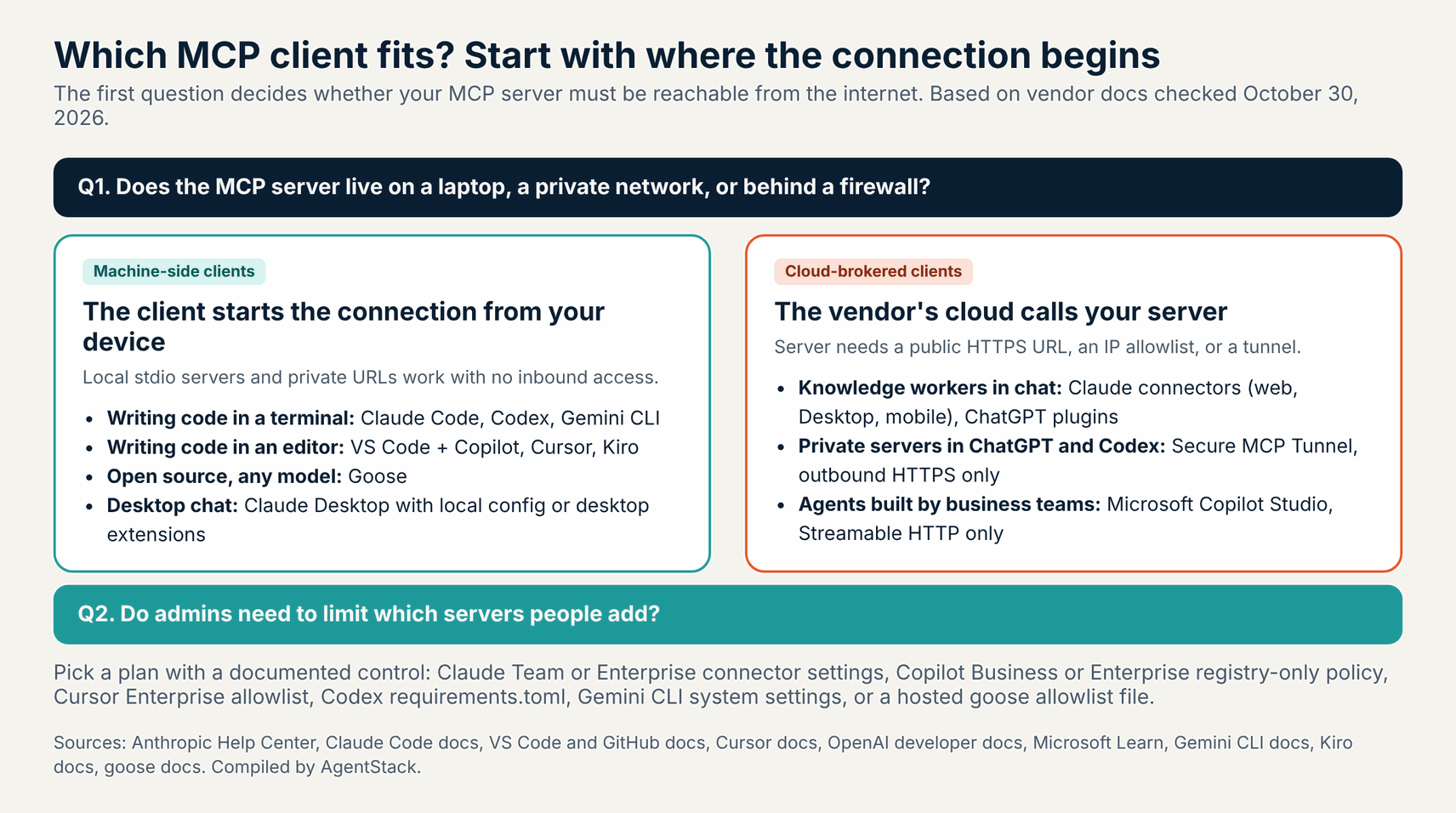
Pick a machine-side client when your MCP servers sit on laptops or private networks, and a cloud-brokered client when the servers already run on public HTTPS. The list below is ranked by MCP depth first, then admin controls, then price.
- Claude Code: best overall for developers, with three config scopes, managed policy, and fast CLI setup.
- VS Code with GitHub Copilot: best for enterprise editor fleets, thanks to the registry-only MCP policy.
- Claude (web and Desktop): best for knowledge workers who want connectors in a chat app.
- Cursor: best AI editor for teams that want a marketplace plus an Enterprise allowlist.
- ChatGPT: best for reaching private servers from chat, through Secure MCP Tunnel.
- OpenAI Codex: best for teams that manage agent config as files in a repo.
- Microsoft Copilot Studio: best for business teams building agents inside Microsoft 365.
- Gemini CLI: best free terminal client, with 1,000 requests a day on a Google account.
- Kiro: best for spec-driven coding with the same MCP config across IDE, CLI, and web.
- Goose: best open source client that works with any model.
MCP Clients Compared at a Glance
Every client on this list can call remote MCP servers over HTTP, but only the machine-side clients can launch a local stdio server without extra plumbing. The table sums up each client from vendor docs read on October 30, 2026.
| MCP client | Type | Transports | Admin control | Entry price |
|---|---|---|---|---|
| Claude (web and Desktop) | Chat app | Remote HTTP; stdio on Desktop | Owner-managed connectors on Team and Enterprise | Free (1 custom connector) |
| Claude Code | Terminal agent | stdio, HTTP | Managed MCP allowlist and denylist | Pro, $17 a month billed yearly |
| VS Code + GitHub Copilot | Editor | stdio, HTTP, SSE | Registry-only policy on Business and Enterprise | Copilot Free, $0 |
| Cursor | Editor and CLI | stdio, HTTP, SSE | Enterprise MCP Allowlist | Free, $0 |
| ChatGPT | Chat app | SSE, streaming HTTP, tunnel | Workspace permissions and Lockdown | Free plan |
| OpenAI Codex | Terminal, IDE, app | stdio, Streamable HTTP | requirements.toml | Included in ChatGPT plans |
| Microsoft Copilot Studio | Agent builder | Streamable HTTP only | Power Platform connector policies | $200 per 25,000 credits a month |
| Gemini CLI | Terminal agent | stdio, SSE, HTTP | mcp.allowed and mcp.excluded | Free, 1,000 requests a day |
| Kiro | IDE, CLI, web | stdio, HTTP, SSE | None found | Free, 50 credits |
| Goose | Desktop and CLI | stdio, Streamable HTTP | GOOSE_ALLOWLIST file | Free, open source |
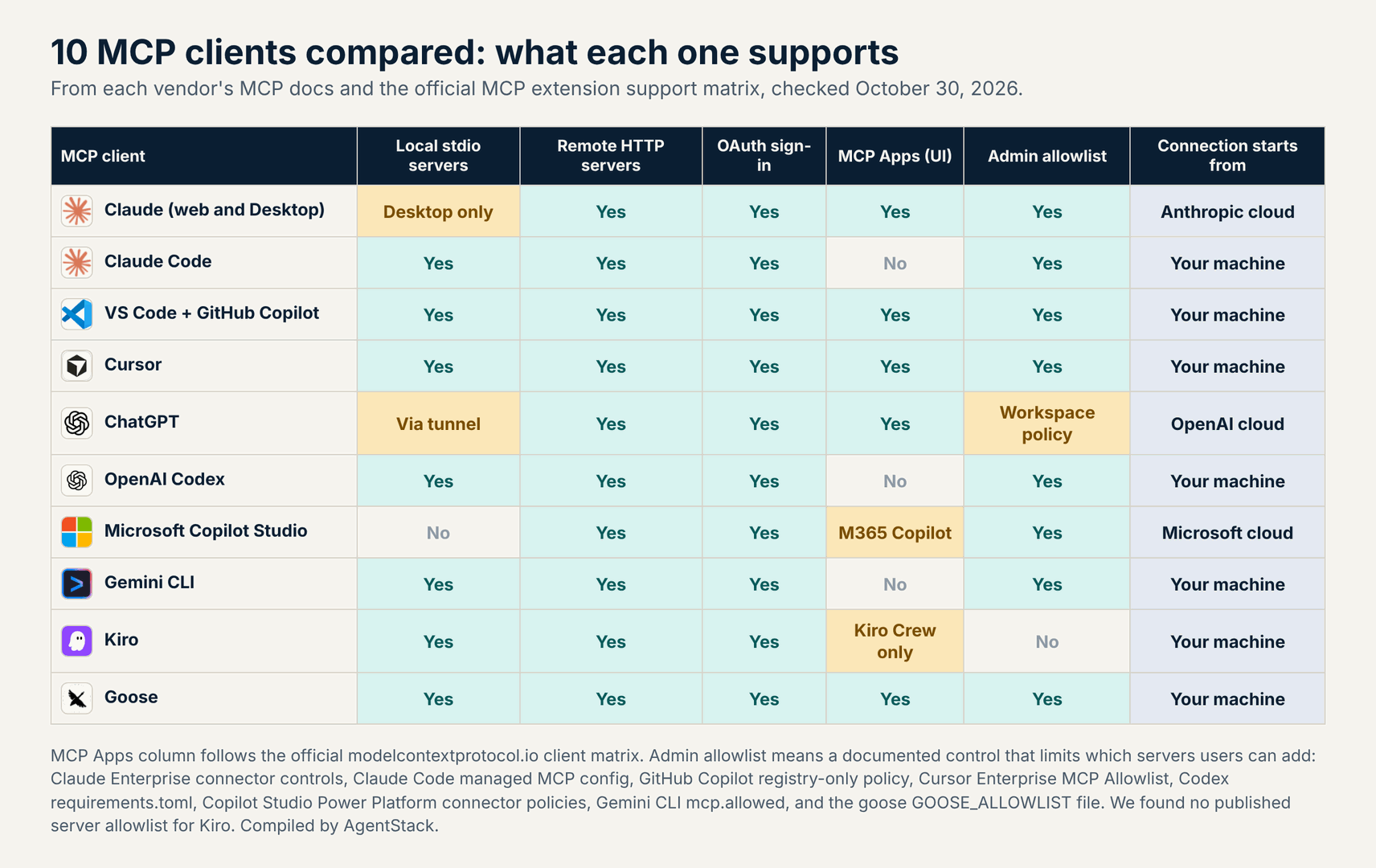
Verdict: the machine-side clients cover the most ground, while the three cloud-brokered clients trade local reach for zero install and central admin. Most teams end up running one of each.
How We Tested These MCP Clients
We added the same two MCP servers to Claude Code, Codex, and Gemini CLI from a fresh home folder, then asked each client to list and check them. One server was the remote Context7 docs server over HTTP, and the other was the local Playwright server over stdio.
The run used Node.js 20.19.2 on Linux with Claude Code 2.1.314, Codex 0.166.0, and Gemini CLI 0.66.0, the latest npm releases on test day. For the other seven clients, we relied on vendor docs, the official MCP client matrix, and current pricing pages.
# Claude Code 2.1.314
claude mcp add --transport http context7 https://mcp.context7.com/mcp
claude mcp add playwright -- npx -y @playwright/mcp@0.0.83
claude mcp list
#  context7: https://mcp.context7.com/mcp (HTTP) - Connected
#  playwright: npx -y @playwright/mcp@0.0.83 - Connected

# Codex 0.166.0
codex mcp add context7 --url https://mcp.context7.com/mcp
#  Authorize `context7` by opening this URL in your browser: ...
codex mcp list
#  context7  enabled  Auth: Not logged in

# Gemini CLI 0.66.0
gemini mcp add --transport http context7 https://mcp.context7.com/mcp
#  Error: Cannot modify settings in an untrusted workspace.
GEMINI_CLI_TRUST_WORKSPACE=true gemini mcp list
#  context7 (http) - Connected
# playwright (stdio) - Connected| Client | Add remote server | Add stdio server | What stood out |
|---|---|---|---|
| Claude Code 2.1.314 | Connected | Connected | Health check runs inside claude mcp list |
| Codex 0.166.0 | Started OAuth sign-in | Added | Opened an OAuth flow on add, using a client metadata URL |
| Gemini CLI 0.66.0 | Blocked until trusted | Blocked until trusted | Untrusted folders disable even user-level servers |
The test shows three different safety defaults: Claude Code connects first, Codex signs in first, and Gemini CLI asks you to trust the folder first. None of them is wrong, but each changes how fast a new teammate gets working.
1. Claude Code: Best MCP Client for Developers
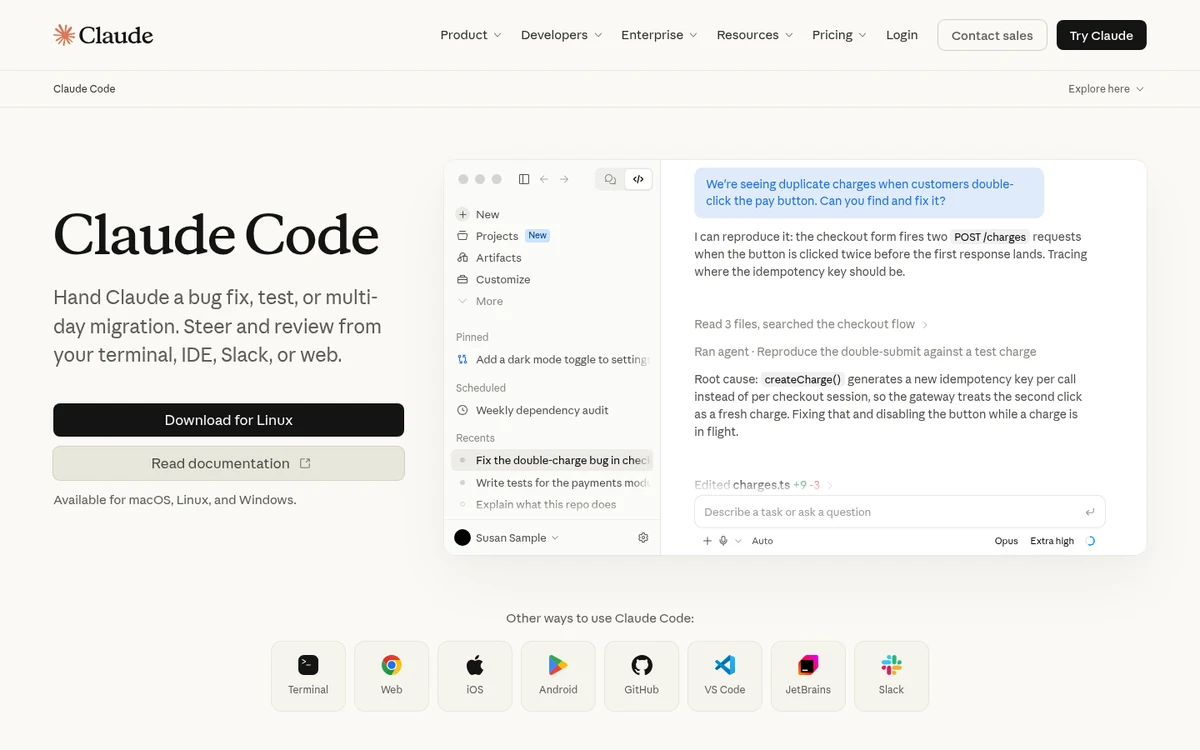
Claude Code is the strongest MCP client for developers because it pairs fast CLI setup with the most complete set of scopes and enterprise policies we found. Servers live in a local, project, or user scope, and a shared .mcp.json file needs approval before it loads.
Admins can push a managed MCP config with an allowlist and denylist, and blocked servers show as Blocked by enterprise managed policy. Tool search is on by default, which keeps big tool lists from eating the context window. The official matrix also lists Claude Code as one of three clients that support MCP Tasks.
- Best for: developers and platform teams who live in a terminal
- MCP support: stdio and HTTP, OAuth through
/mcp, Tasks, three config scopes, managed allowlist - Pricing (October 2026): included with Claude Pro at $17 a month billed yearly, or Max from $100 a month
- Watch out for: OAuth sign-ins are stored per endpoint, so the same server can need a fresh login in each project
2. VS Code with GitHub Copilot: Best for Enterprise Editor Fleets
VS Code with GitHub Copilot is the best choice for large editor fleets because Copilot Business and Enterprise let admins limit MCP to servers in an approved registry. The MCP server access policy offers Allow all or Registry only at enterprise and org level, and it is in public preview.
In the editor, the MCP: Add Server command adds an HTTP or a command-based stdio server, and an MCP gallery sits in the Extensions view. GitHub recommends managed-settings.json for the generally available control path, and Azure API Center can host the registry. See our MCP registries guide before you pick one.
- Best for: companies that standardize on VS Code and GitHub
- MCP support: stdio, HTTP, and SSE, OAuth, MCP Apps, server sandboxing, registry-only policy
- Pricing (October 2026): VS Code is free; Copilot Free $0, Pro $10, Pro+ $39, and Max $100 a month
- Watch out for: the registry-only policy is in public preview, so test it before you rely on it
3. Claude: Best MCP Client for Chat Users
Claude is the best MCP client for people who want tools inside a chat app, since custom connectors work on every plan, including one connector on Free. Remote connectors work across web, Desktop, and mobile, and Desktop also runs local servers through a config file or one-click desktop extensions.
Remote connector traffic starts from Anthropic’s cloud, so a private server needs Anthropic IP ranges allowlisted in your firewall. On Team and Enterprise, only Owners and Primary Owners add custom connectors, and Enterprise adds admin controls for remote and local connectors. The official matrix lists Claude web and Desktop for MCP Apps.
- Best for: knowledge workers and teams who want connectors without a code editor
- MCP support: remote HTTP with OAuth on all surfaces, stdio and desktop extensions on Desktop, MCP Apps
- Pricing (October 2026): Free; Pro $17 a month billed yearly; Max from $100; Team premium seat $100 a month billed yearly
- Watch out for: local servers set up on Desktop do not appear on claude.ai or in Cowork
4. Cursor: Best AI Editor With an MCP Allowlist
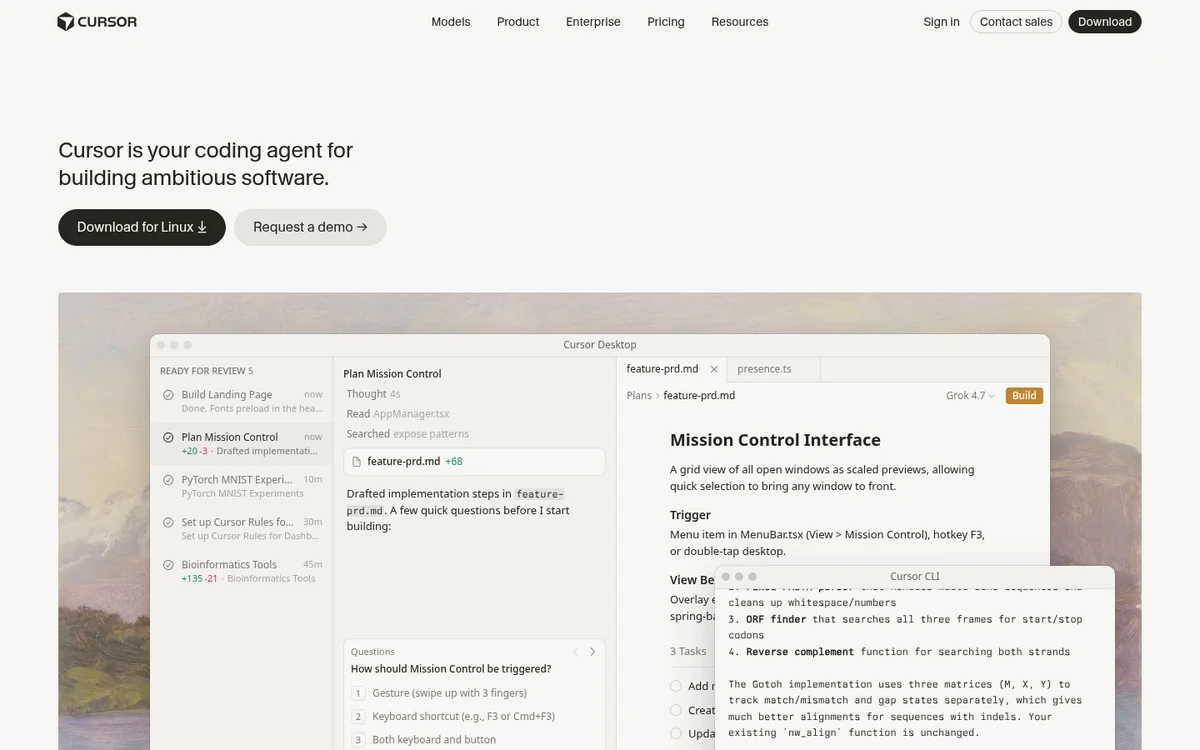
Cursor suits teams that want an AI-first editor with a curated marketplace and a hard allowlist for which MCP servers can run. Servers go in mcp.json, and the Marketplace adds official plugins with an Add to Cursor button and an OAuth sign-in.
Team admins can share servers through a team marketplace, and Enterprise admins set the MCP Allowlist under Team Settings. Command entries approve local servers, and tool allowlists limit which tools run on their own. Cursor also supports static OAuth client credentials for servers without dynamic registration.
- Best for: teams that already prefer Cursor as their editor
- MCP support: stdio, HTTP, and SSE, OAuth, MCP Apps, team marketplace, Enterprise allowlist
- Pricing (October 2026): Free $0; Plus $8, Premium $30, and Super $100 a month; MCP access controls on the top team tier
- Watch out for: an allowlist approves a config but does not install it, so pair it with the team marketplace
5. ChatGPT: Best for Private Servers From Chat
ChatGPT is the best chat client for reaching MCP servers behind a firewall, because Secure MCP Tunnel needs only an outbound HTTPS connection from your network. You add a server with Add custom MCP server, and ChatGPT saves it as a plugin you can share in Business or Enterprise.
The OpenAI connection guide supports SSE and streaming HTTP, with OAuth through client metadata, dynamic registration, or static credentials. The tunnel client runs inside your network, pulls queued MCP requests from OpenAI, and returns results through the same path. Workspace permissions and Lockdown apply to every custom server.
- Best for: ChatGPT workspaces that need tools from internal systems
- MCP support: SSE and streaming HTTP, OAuth or no auth, Secure MCP Tunnel, MCP Apps
- Pricing (October 2026): Free plan; paid Go, Plus, Business, and Enterprise plans priced per user per month
- Watch out for: no local stdio servers, so every server must be remote or tunneled
6. OpenAI Codex: Best for Config-as-Code Teams
Codex is the best fit for teams that want MCP settings checked into a repo, since a trusted project can carry its own .codex/config.toml next to the code. The Codex MCP docs cover stdio and Streamable HTTP servers, set up with codex mcp add or by editing the file.
Remote servers can use a bearer token from an environment variable or OAuth, and codex mcp login handles sign-in. In our test, adding Context7 opened an OAuth flow at once. Enterprise admins can require or limit servers through a requirements.toml file.
- Best for: engineering teams that review agent config in pull requests
- MCP support: stdio and Streamable HTTP, bearer tokens, OAuth, project config for trusted folders
- Pricing (October 2026): Codex is included in ChatGPT plans
- Watch out for: project-level config only loads in trusted projects, which can confuse new users
7. Microsoft Copilot Studio: Best for Microsoft 365 Agent Builders
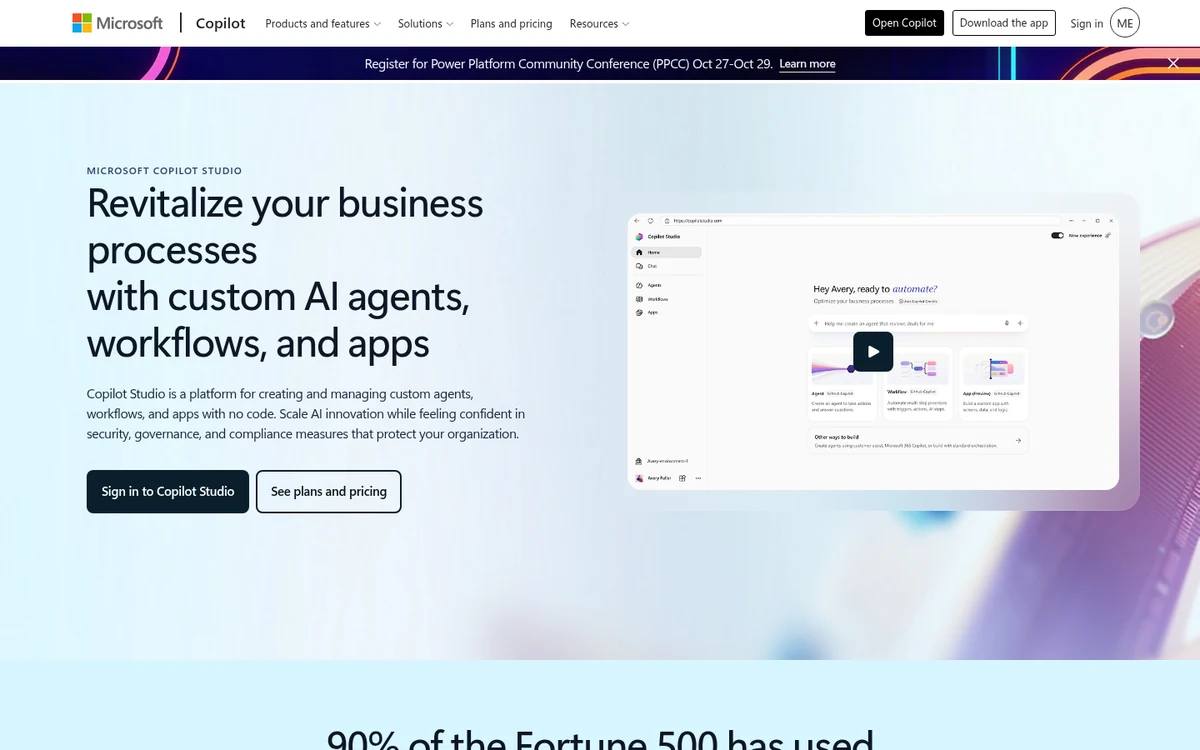
Copilot Studio is the right MCP client when business teams build agents for Microsoft 365, since the MCP onboarding wizard needs no code. Agents use MCP tools and resources, though not prompts, and they need generative orchestration turned on.
The onboarding wizard supports no auth, API key, or OAuth 2.0, and a Power Apps custom connector is the other path. Copilot Studio supports Streamable HTTP only, since SSE support ended after August 2025. Microsoft 365 Copilot also runs MCP plugins for declarative agents, and the official matrix lists it for MCP Apps.
- Best for: Microsoft 365 shops building agents for non-developers
- MCP support: Streamable HTTP, tools and resources, API key or OAuth 2.0, Power Platform governance
- Pricing (October 2026): $200 per pack of 25,000 Copilot Credits a month; Microsoft 365 Copilot $30 per user a month, billed yearly
- Watch out for: no prompts support and no local servers, so plan a hosted endpoint first
8. Gemini CLI: Best Free Terminal MCP Client
Gemini CLI is the best free MCP client for the terminal, with 1,000 model requests a day when you sign in with a Google account. Servers live under mcpServers in settings.json, and resources can be pulled into a prompt with an @ mention.
The Gemini CLI MCP docs list mcp.allowed and mcp.excluded for global control, plus tool include and exclude lists per server. A trust flag skips every confirmation for a server, so keep it off for anything that writes data. In our test, untrusted folders blocked new servers until we trusted the workspace.
- Best for: solo developers and teams on Google Cloud
- MCP support: stdio, SSE, and HTTP, OAuth for remote servers, per-server tool filters
- Pricing (October 2026): free with 1,000 requests a day; Code Assist Standard 1,500 and Enterprise 2,000 a day
- Watch out for: the trust flag bypasses all tool confirmations for that server
9. Kiro: Best for Spec-Driven Coding

Kiro is a good MCP client for teams that want one MCP config across its IDE, CLI, and web apps, with spec-driven coding on top. All three support local stdio and remote HTTP or SSE servers, while Kiro Mobile does not.
Kiro runs the browser OAuth flow for protected servers, and its MCP config docs show custom client IDs and client metadata URLs. The IDE supports public OAuth clients only, so servers that require a client secret will not work there. Kiro also shows a warning before it expands environment variables you have not approved.
- Best for: developers who like spec-first workflows
- MCP support: stdio, HTTP, and SSE, OAuth with PKCE, prompts and resources
- Pricing (October 2026): Free with 50 credits; Pro $20, Pro+ $40, Pro Max $100, and Power $200 a month
- Watch out for: we found no published admin allowlist for MCP servers
10. Goose: Best Open Source MCP Client
Goose is the best open source MCP client, since every extension is an MCP server and you can bring any model. It runs as a desktop app and a CLI under the Apache 2.0 license, and it checks external extensions for known malware before activation.
Admins can host a YAML extension allowlist and point goose at it with GOOSE_ALLOWLIST. The docs warn that the default Developer extension lets goose run commands and edit files without approval, so review its permission settings. Remote servers use Streamable HTTP with OAuth, including a fixed callback port when needed.
- Best for: teams that want an open source agent with any model
- MCP support: stdio and Streamable HTTP, OAuth, MCP Apps, allowlist file, malware check
- Pricing (October 2026): free; you pay only for the model you connect
- Watch out for: the Developer extension is on by default and can change files
How to Choose an MCP Client
Start with where your MCP servers live, then check whether your admins need to block unapproved servers, and only then compare models and price. The guide below turns that into two questions, then lists first steps for developers, IT and security teams, and business teams. Security issues in official servers still show up, including the AWS MCP server vulnerabilities we retested after the CVEs landed.
You build software
- Start with Claude Code or Codex in the terminal, or VS Code with Copilot and Cursor in an editor.
- Add the servers your stack needs from our best MCP servers list and the CRM MCP servers roundup.
- Test tool calls with the AI agent testing tools we reviewed before rollout.
You run IT or security
- Pick a client with a documented allowlist and turn it on before rollout.
- Route remote servers through an MCP gateway; our MCP gateway pricing guide covers costs.
- Publish approved servers in a registry, compared in Smithery vs Glama vs the official MCP registry.
You lead a business team
- Use Claude connectors, ChatGPT, or Copilot Studio so nobody installs local software.
- Host servers on a public HTTPS platform from our MCP hosting platforms guide, or use a tunnel.
- Compare hosted tool layers in agent integration platforms before you build your own servers.
Security Checks Before You Connect Any MCP Client
An MCP client runs tools with your permissions, so the client is a security boundary even when the server looks harmless. Recent client bugs, like the issues in our FastMCP client advisory report, show why updates matter. Run these four checks before any client reaches production data.
- Keep clients patched: CLI clients ship new versions almost daily, and our MCP tool security bugs report tracks recent flaws.
- Scope credentials: give each server its own token, using the non-human identity tools we reviewed.
- Scan servers: check new servers with the MCP security tools in our roundup before approval.
- Limit auto-approve: settings like the Gemini CLI
trustflag skip prompts, so save them for read-only tools.
Frequently Asked Questions
What is an MCP client?
An MCP client is the app that connects an AI model to Model Context Protocol servers. It starts each server or opens a remote connection, lists the tools, asks for approval, and returns results to the model. Claude, ChatGPT, VS Code, Cursor, and Claude Code are common MCP clients in 2026.
Which MCP client is best for enterprise teams?
For developer fleets, VS Code with GitHub Copilot Business or Enterprise is strongest because admins can allow only servers in an approved registry. For chat users, Claude Enterprise and ChatGPT Enterprise add connector controls. Cursor Enterprise, Claude Code managed config, and Codex requirements.toml also offer documented allowlists for MCP servers.
Can ChatGPT connect to a local MCP server?
Not directly, because ChatGPT calls MCP servers from OpenAI’s cloud over SSE or streaming HTTP. For a server on a laptop or private network, run Secure MCP Tunnel, which opens an outbound HTTPS connection to OpenAI and forwards requests to your server. Codex CLI can run local stdio servers directly instead.
Do MCP clients support OAuth?
Yes, all ten clients in this guide support OAuth for remote MCP servers in some form. Claude, ChatGPT, Cursor, Codex, and Kiro document client metadata or custom client options for servers without dynamic registration. Copilot Studio offers OAuth 2.0 or an API key, and Kiro’s IDE needs public clients that use PKCE.
Which MCP clients support MCP Apps?
The official MCP client matrix lists Claude web, Claude Desktop, VS Code GitHub Copilot, Microsoft 365 Copilot, Goose, ChatGPT, Cursor, Postman, and MCPJam among clients that render MCP Apps. Claude Code, Codex, and Gemini CLI do not appear for that extension. Check the matrix again before you ship app interfaces.
Related Guides
If you build servers as well as connect clients, our MCP server frameworks guide explains which framework fits Python, TypeScript or Go teams and how each one reports bad tool input back to the model.
Once you pick a client, the next step is often connecting it to your data. Our comparison of the best database MCP servers explains which server fits Postgres, MongoDB, ClickHouse, Snowflake or Databricks.
Most clients on this list can call a browser server. Our guide to Playwright MCP, Chrome DevTools MCP and Browserbase explains which browser server to connect for cross-browser automation, front end debugging or cloud sessions at scale.
Keep going with the MCP hub, our MCP explainer, the best MCP servers list, the MCP gateways roundup, and the MCP registries guide. Each one covers a layer that sits next to the client, from the servers you connect to the controls in between.
More context sits in MCP security tools, MCP hosting platforms, Cloudflare vs Vercel vs AgentCore, the MCP TypeScript SDK skills update, the Red Hat MCP gateway news, and our AI agent frameworks guide.
The Bottom Line
Choose Claude Code for terminal work, VS Code with Copilot for governed editor fleets, and Claude or ChatGPT for chat users, then add a cloud or open source client only where it fills a gap. The best MCP client is the one that reaches your servers without opening holes in your network. Once a client is in place, you still need a way to inspect what it sends. Our guide to MCP testing and debugging tools covers options beyond MCP Inspector. The client is only safe if the session layer holds. We retested a session bug in the MCP Python SDK that was flagged as exploited.
MCP clients ship updates every week, so recheck the linked docs before rollout and test your own servers in each finalist. Send corrections or your own test results through our contact page.